It is possible to use an iPhone or an iPad to submit damage assessment forms. To enable this, you will need to install several free apps and download the forms data. Form data is kept up-to-date in a Github code repository. So you will need a Git app on your iPhone / iPad to access these forms. In addition, the forms themselves are web pages. Since, in an emergency, we can't count on your iPhone or iPad being connected to a live webserver at all times, even with AREDN / OESNet. So, instead, we will run a small web server on your phone or iPad to serve up these web pages. The two apps -- the Git client and the webserver -- work together to achieve this.
Prepare your email client
We use your email client -- on your PC or mobile device -- to actually submit your reports. This has the advantage that your reports will be saved until you are in range of an AREDN hotspot. At that point, your reports will be uploaded automatically.
You need to set yourself up to be able to send email on the AREDN network by asking for an account on the pa-mail.local.mesh server. You will find details about configuring your email client here.
Download the necessary apps: iOS
Go to the App Store and download these apps:
- Working Copy, a Git client. There are in-app purchase options. You should not need them.
- PocketServer, a small web server.
Launch Working Copy. Look for the "fingerprint" icon at the left on the top of the screen. Tap on it and choose "Clone Repository".
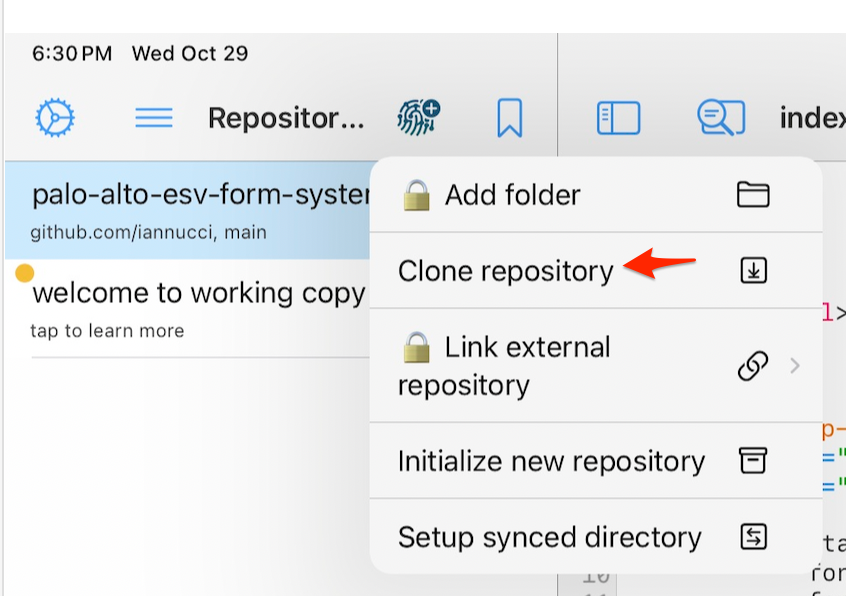
Paste the following link into the text box:
Tap "Sign In" if you have a GitHub account or "Sign Up" if you don't.
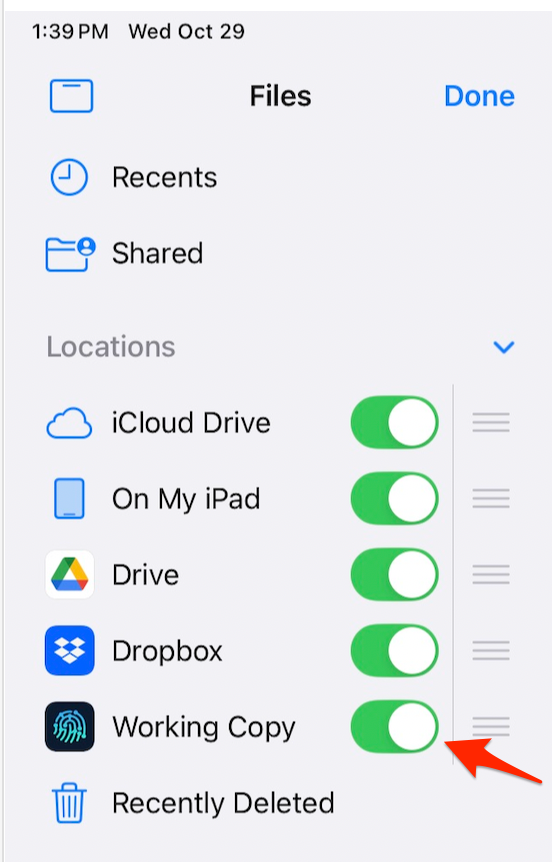
Once the repository has been copied ("cloned") to your iPhone or iPad, you will need to make the contents available to other apps. Open the "Files" app. tap on the three dots in a circle (top of the screen toward the left), select "Edit Sidebar" and enable Working Copy as shown below. Then tap "Done".
Open the PocketServer app. On the Home screen, select "Folder Sharing." This will bring up the Files dialog. Tap on "Working Copy." Then tap on "palo-alto-esv-form-system." This will bring up a QR code and a "Copy" button. Click the Copy button.
Download the necessary apps: Android
[coming soon]
Access the forms
Open Safari and paste the copied value into the address bar and tap "Go." This should open the following screen:

The red highlighting indicates the fields are required. Fill them in.

Now, tap "Windshield Survey." The button won't work until all the fields are filled in.
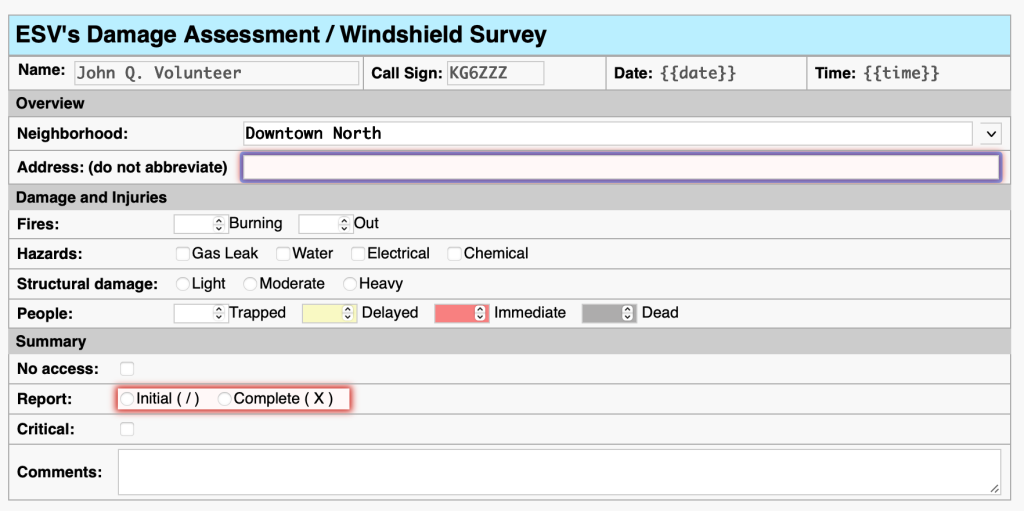
Note that the fields you filled in (Name, Call Sign, Neighborhood) have been transferred to this form. Now, fill in the rest of your report.
Submitting form data
Tap "Submit via Email" on the upper button bar. This should auto-generate an email message in your mail client with the To: address, the Subject and the body automatically filled in as shown below. IMPORTANT: when you set up your email client to add your AREDN mail account, the From: address became a choice. Be sure to select the AREDN address, not your public email address .
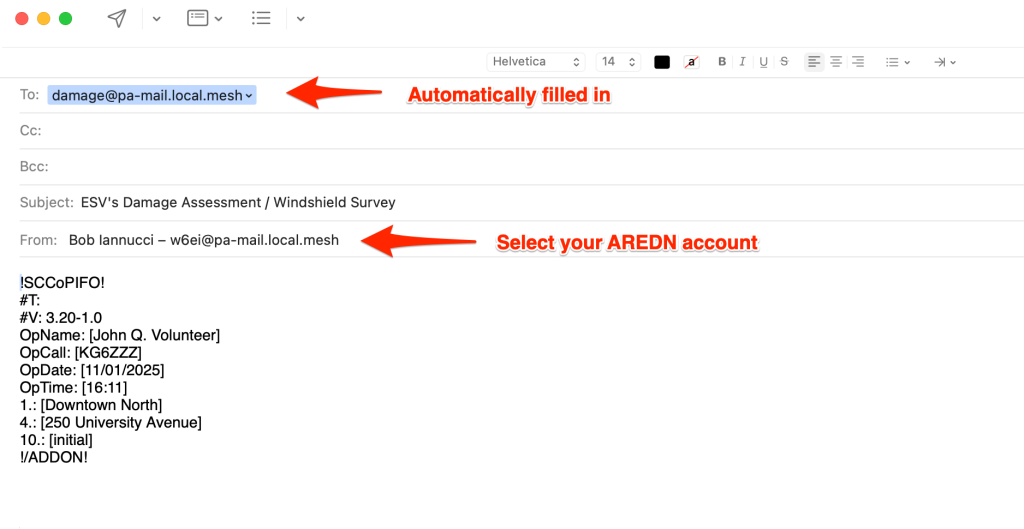
Send it. If you are not in range of an AREDN node, the message will be queued and sent when connectivity is available. This will then upload the assessment information to the Situational Awareness database.